Loading...
Go To Google.com
(Open
https://www.zoom.us website)
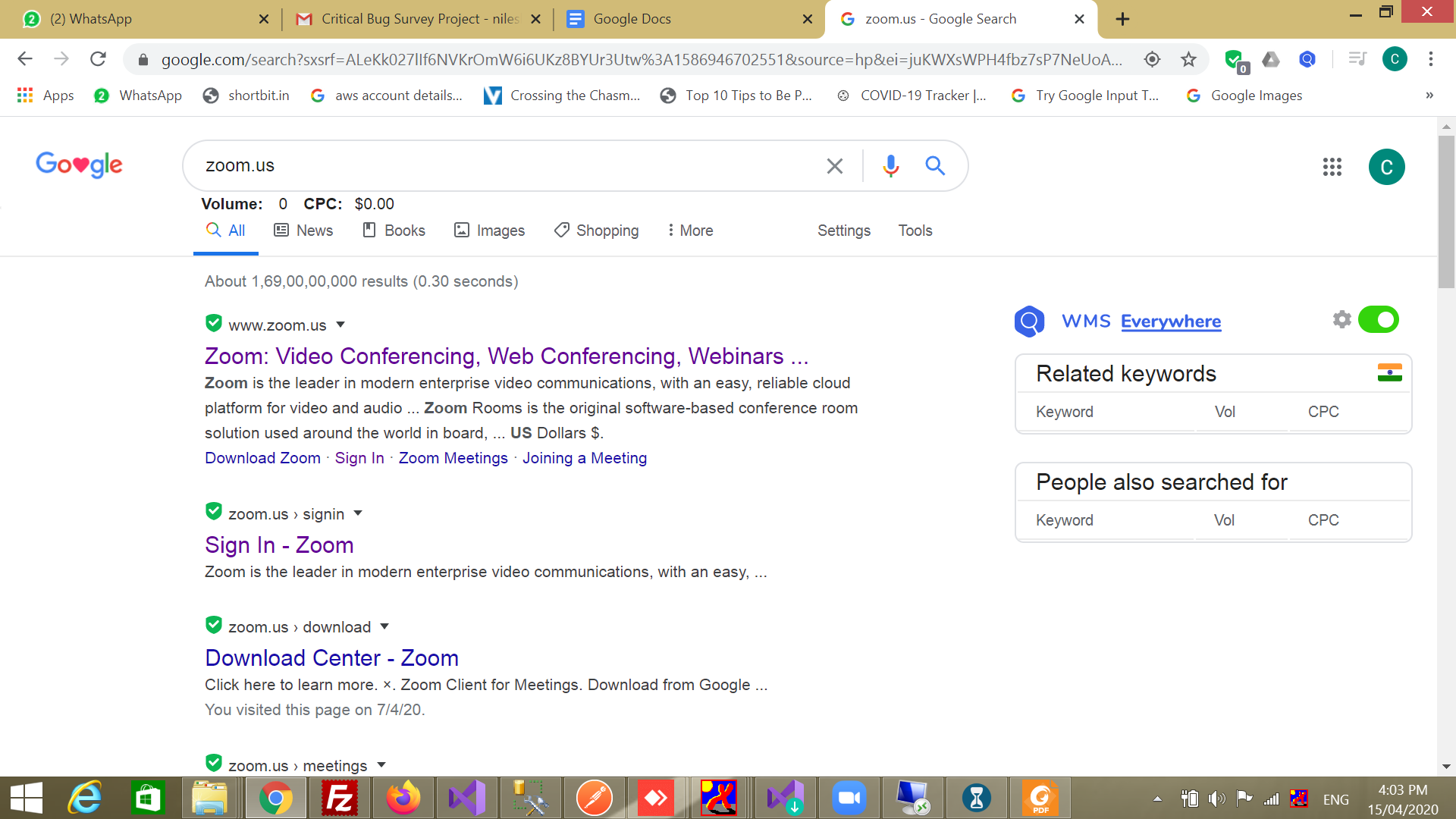
Type zoom.us
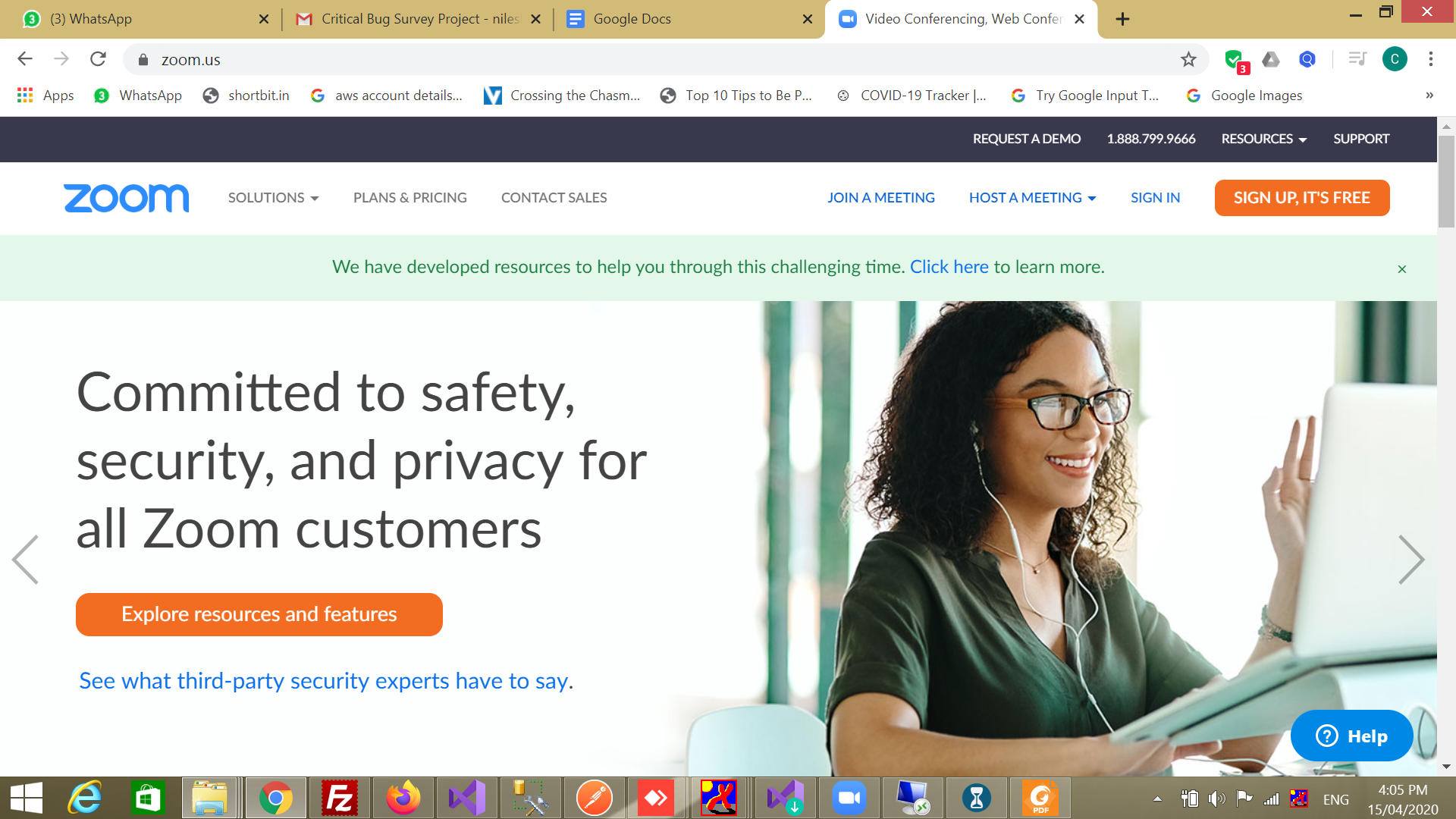
We have to click on a sign-in link from the website
(Open
https://www.zoom.us/signin )
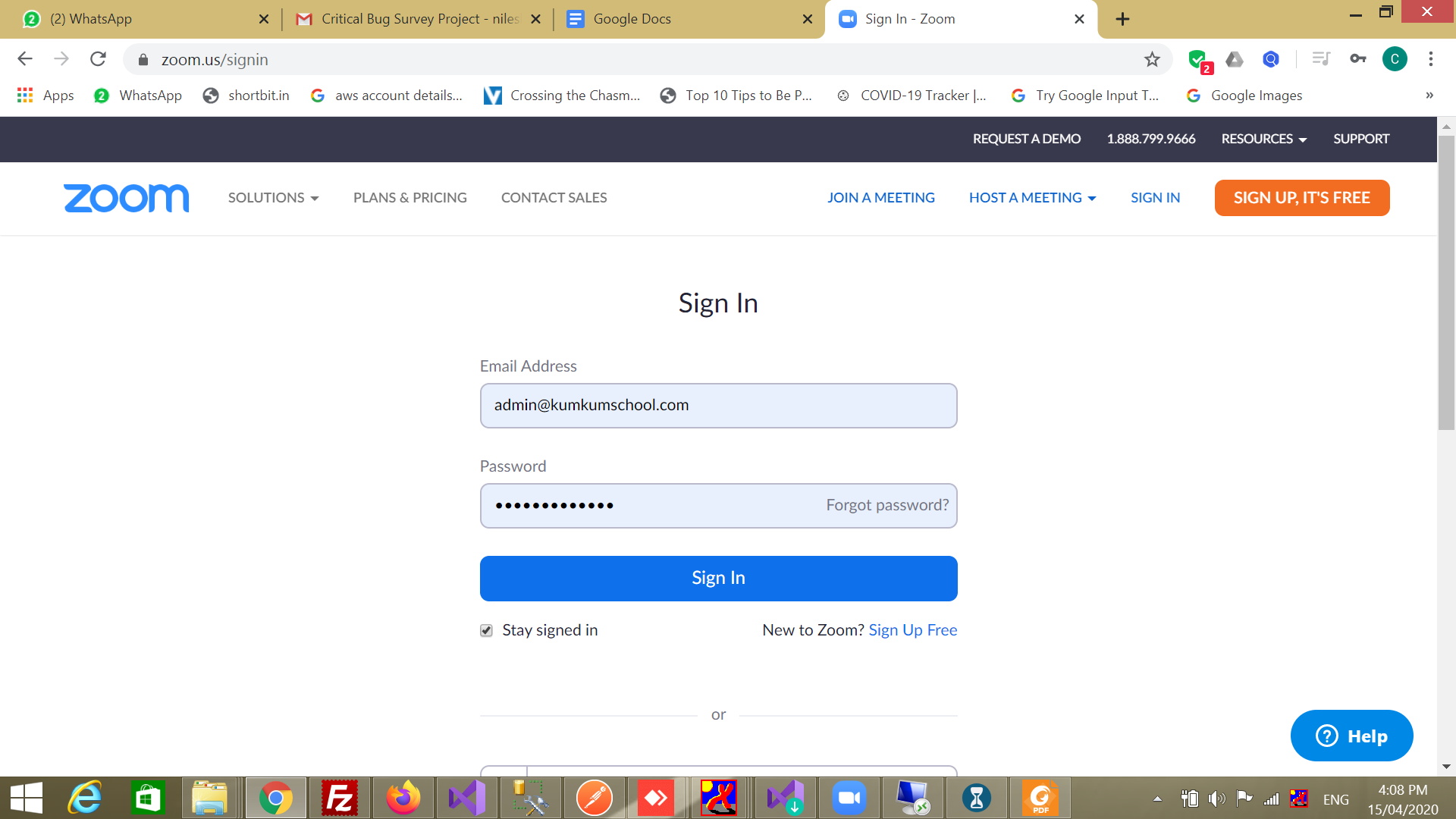
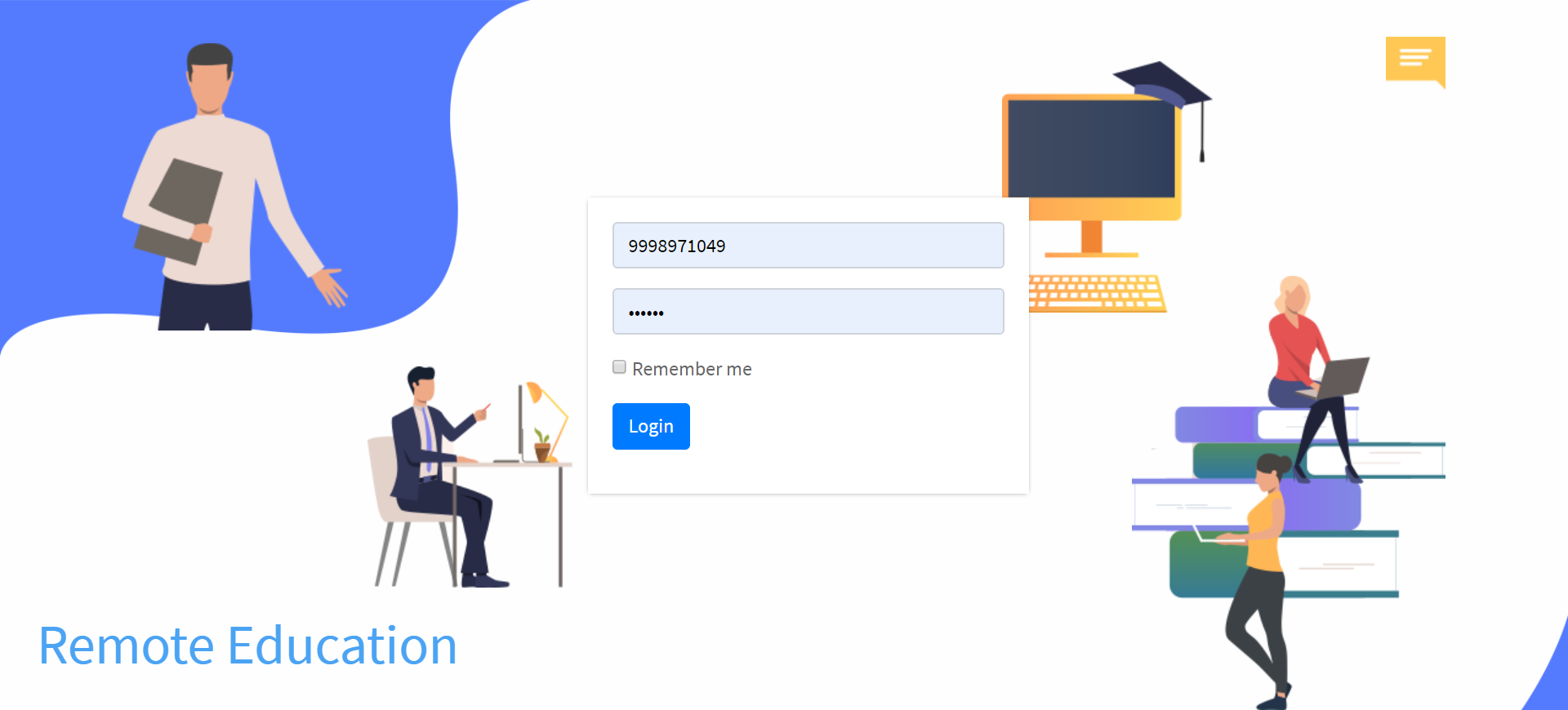
Enter Username and Pwd here to sign in
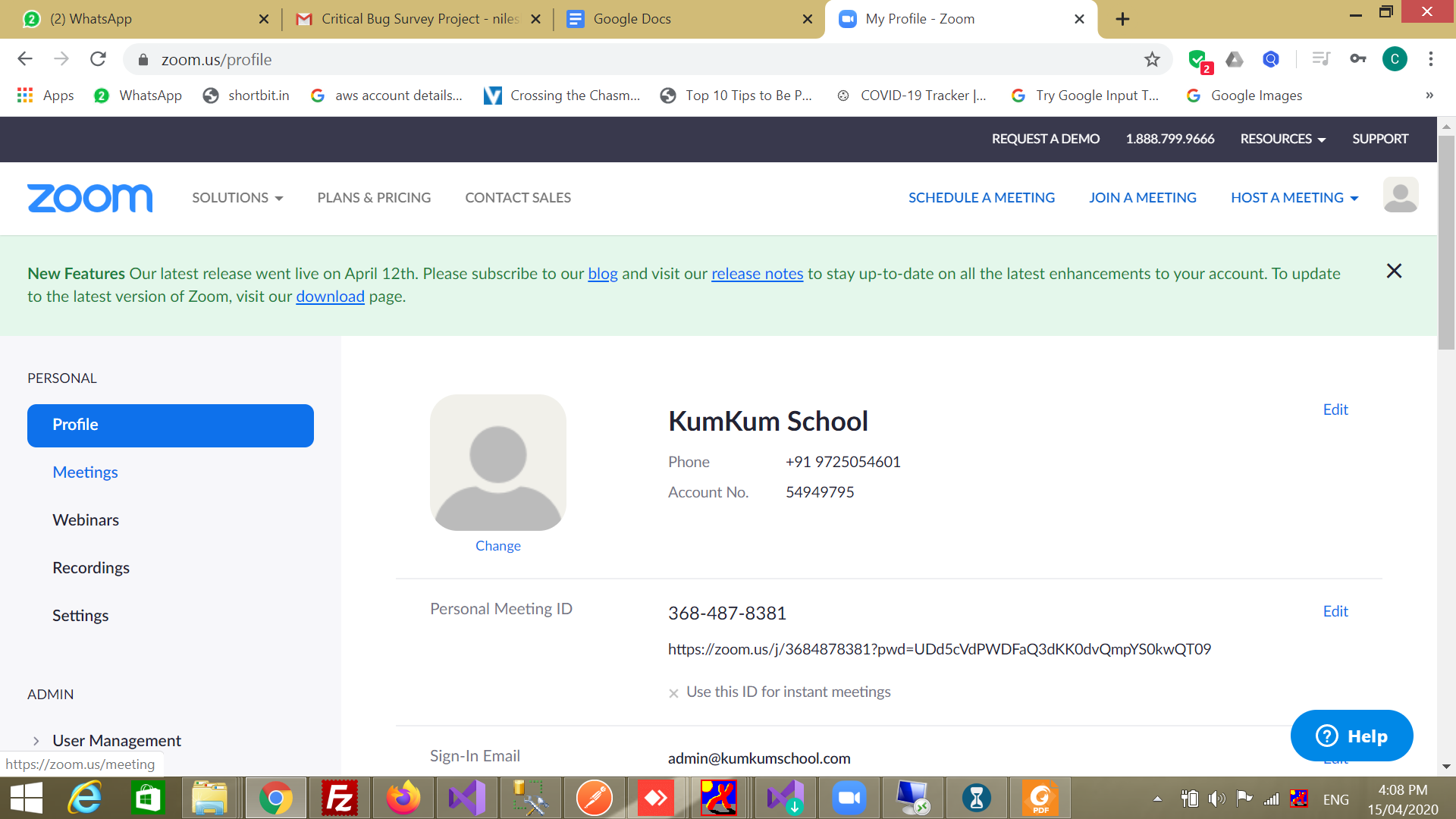
After Successfully Logged In system you can see Meetings options in left side menu Click on Meeting menu.
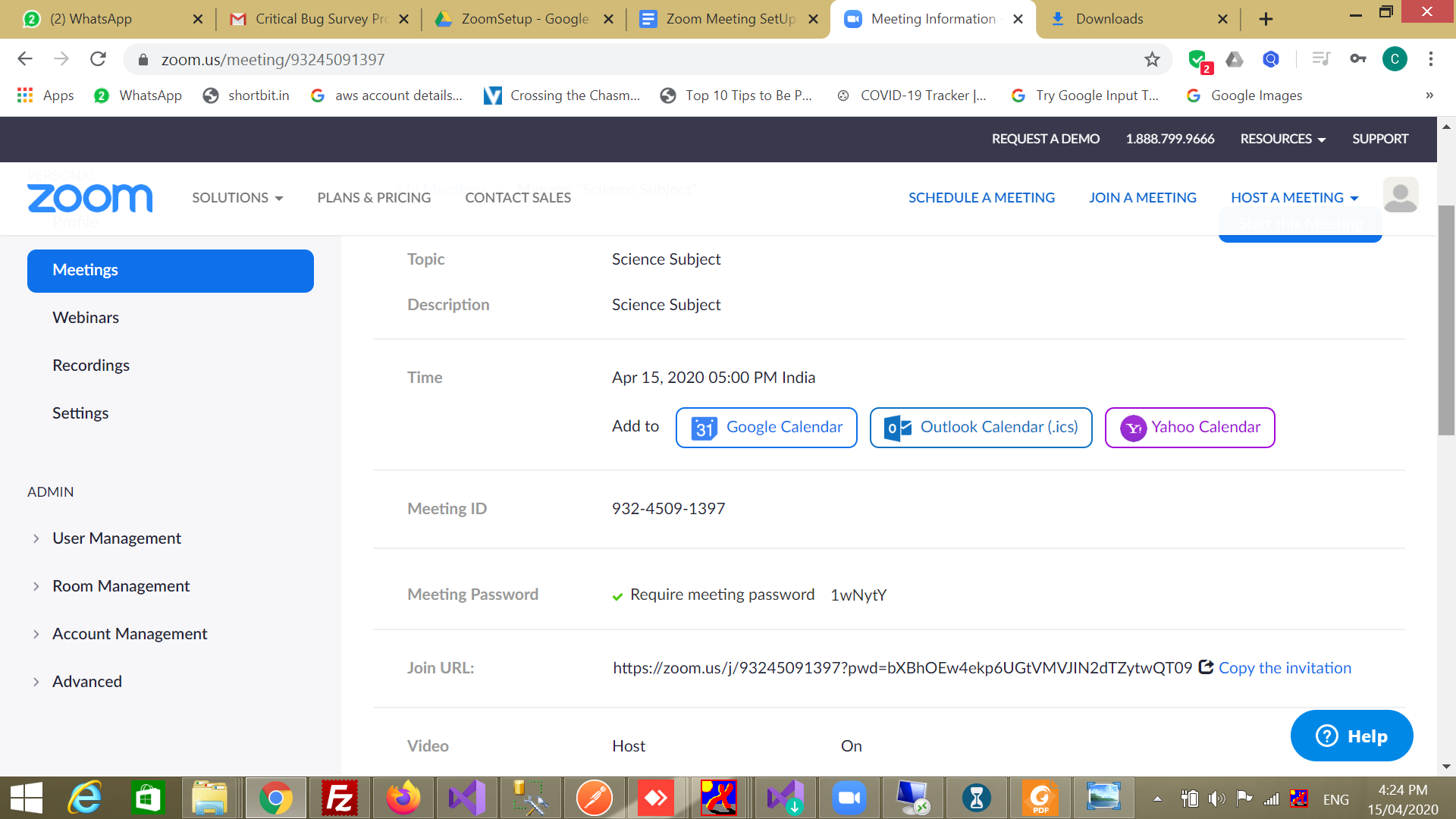
Now you can see below screen.
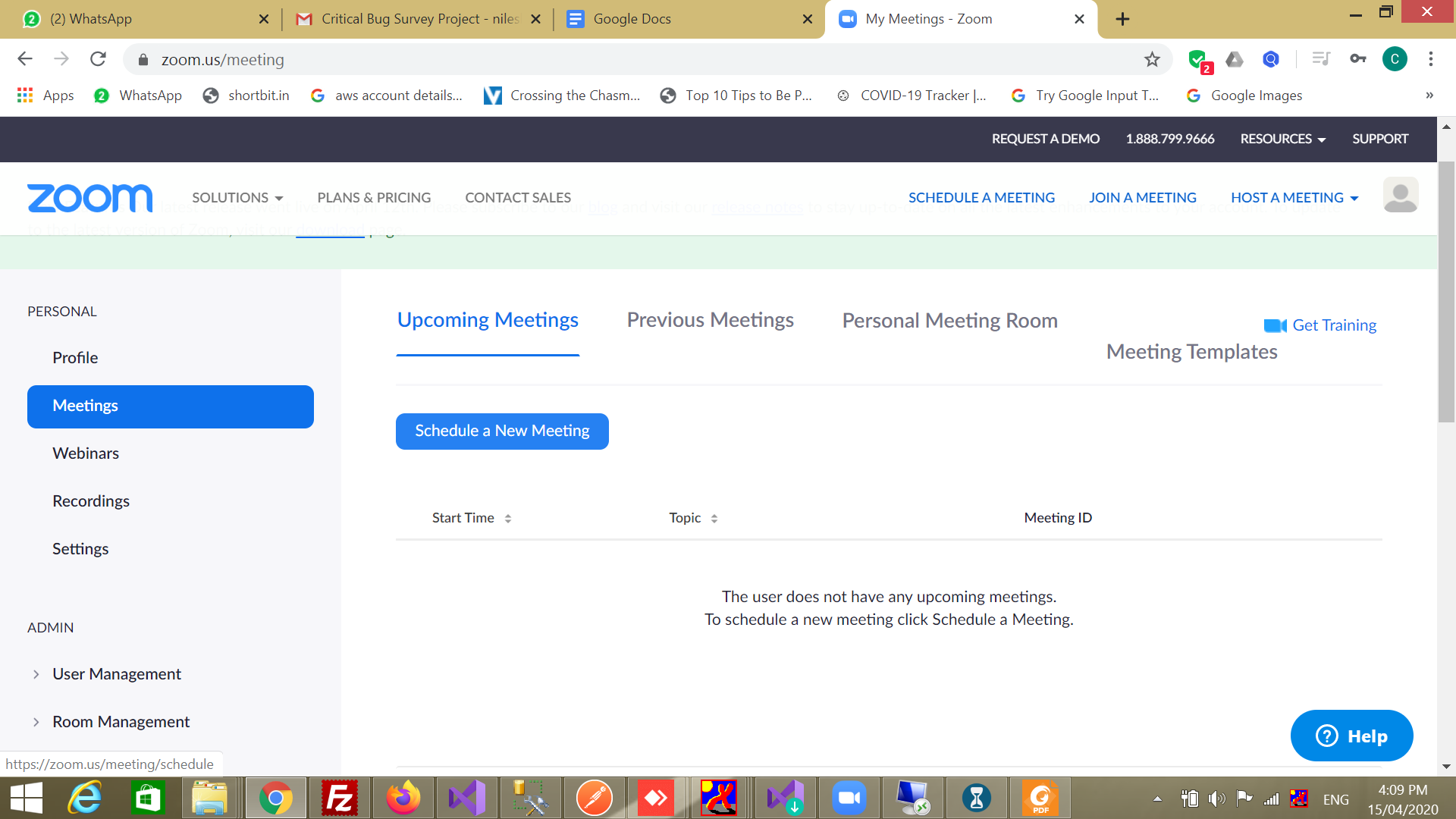
Topic : You have to enter Topic name as per your meeting like if you want to take lecture of science subject than you have to enter meaning full name. For Ex. Science Subject.
Description : Here you can describe your meetings in details.
Duration : You can select 45 Minute duration.
Meeting ID : you have to select Generate Automatically option.
Meeting Password : Here Require Meeting password by default checked.
Video : In Host you have to select ON
In Participant you have to select OFF
Audio : In Audio you have to Select BOTH option
Meeting Options : Enable Join Before Host (True)
Mute participants upon entry (True)
Enable waiting room (False)
Record the meeting automatically on the local computer(True)
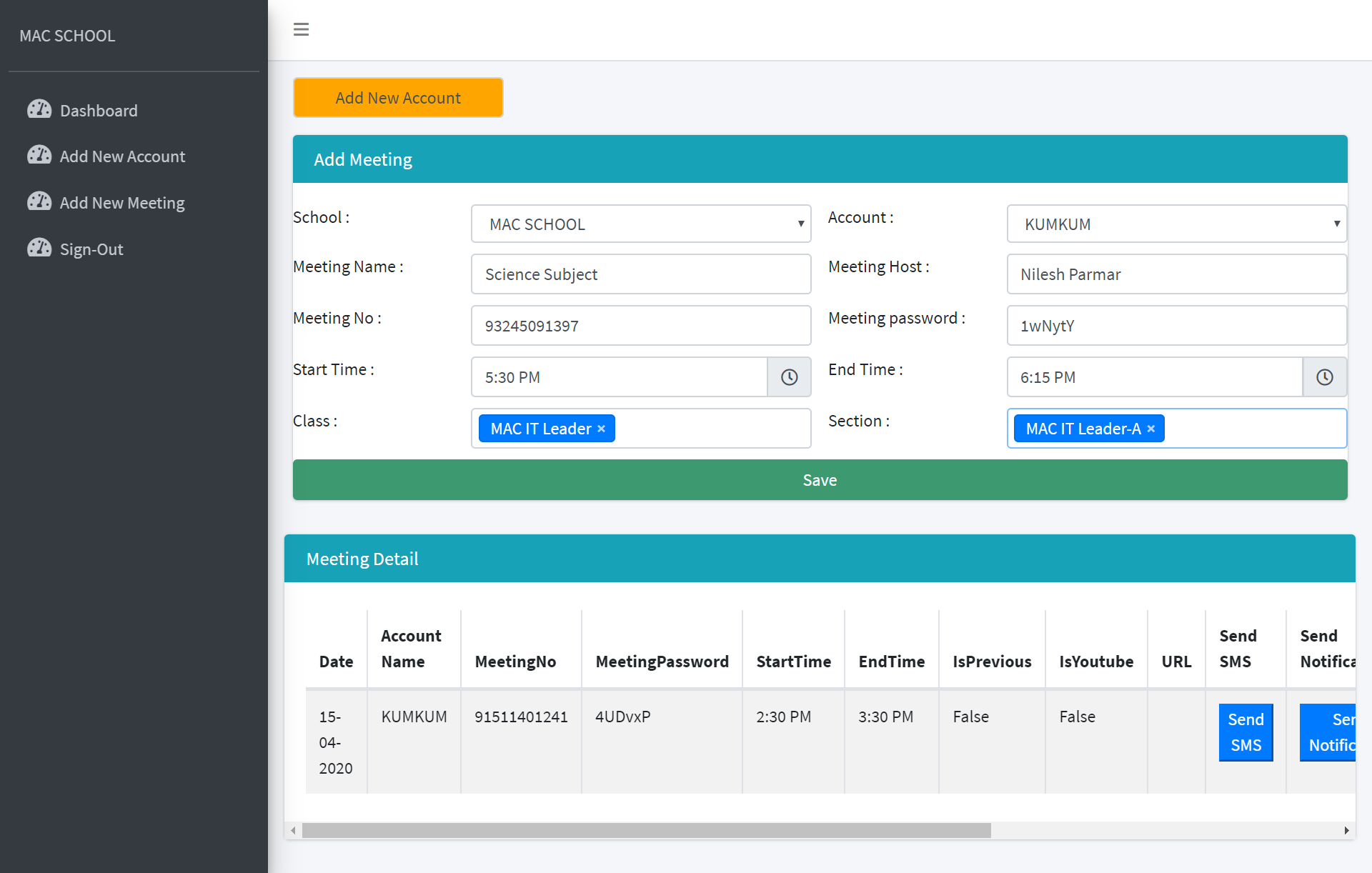
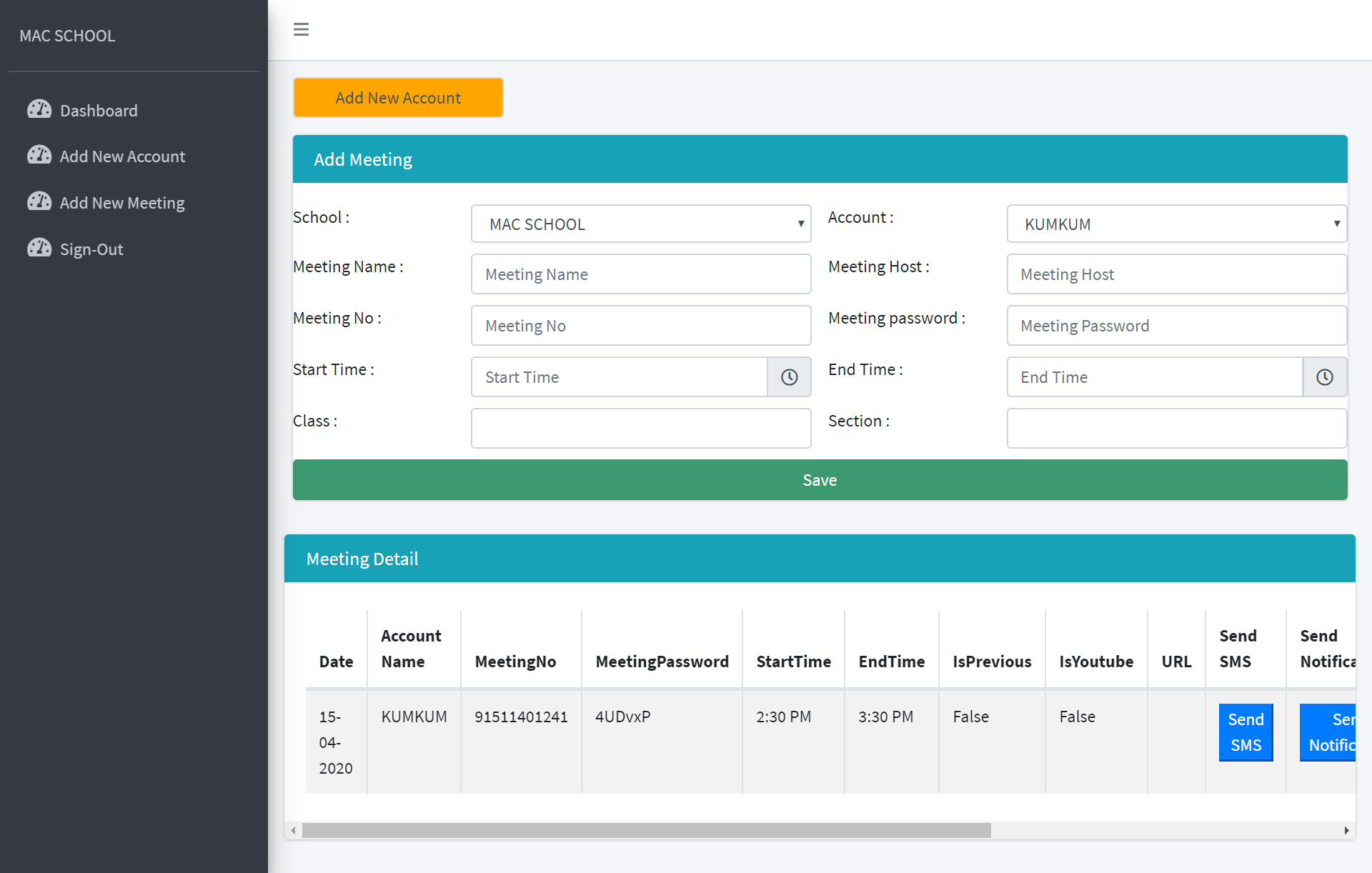

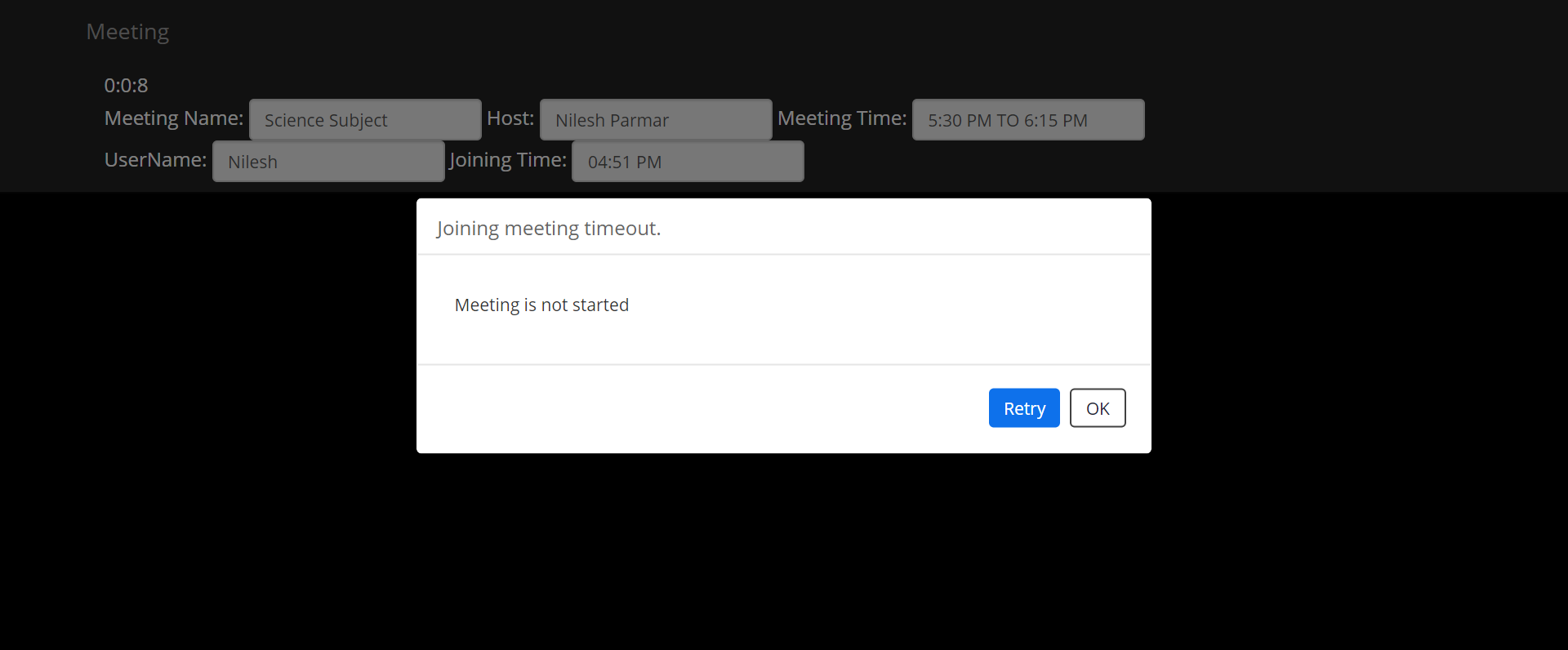
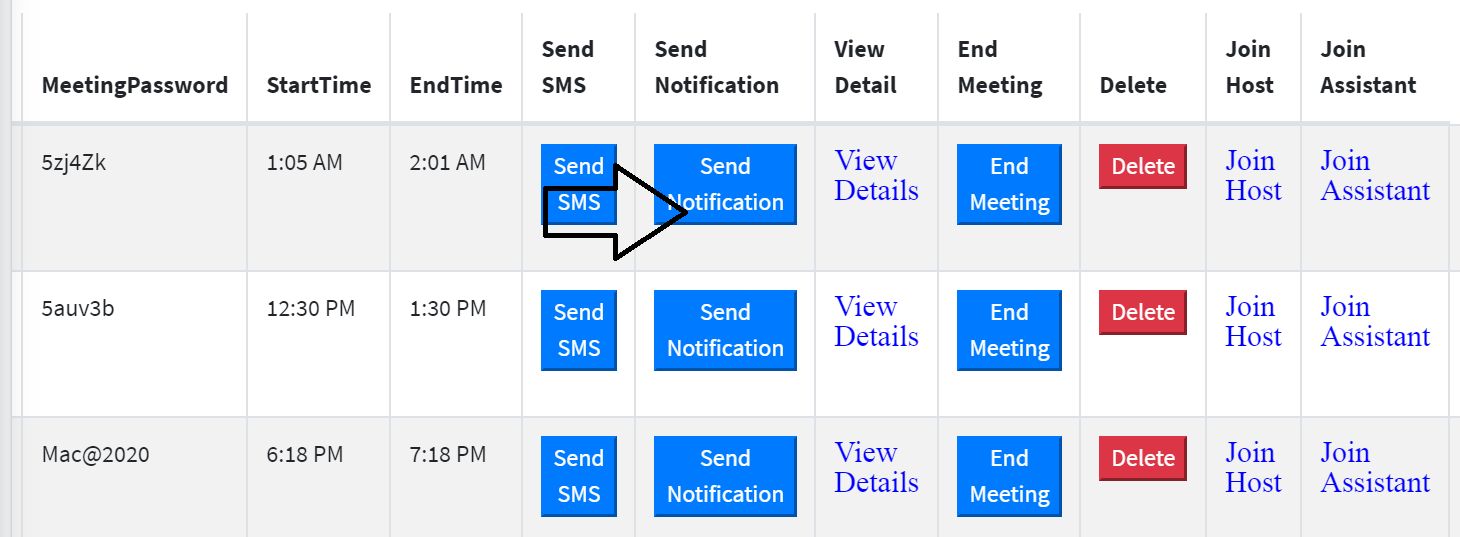
To join as a host you have to click on Join as Host button from list
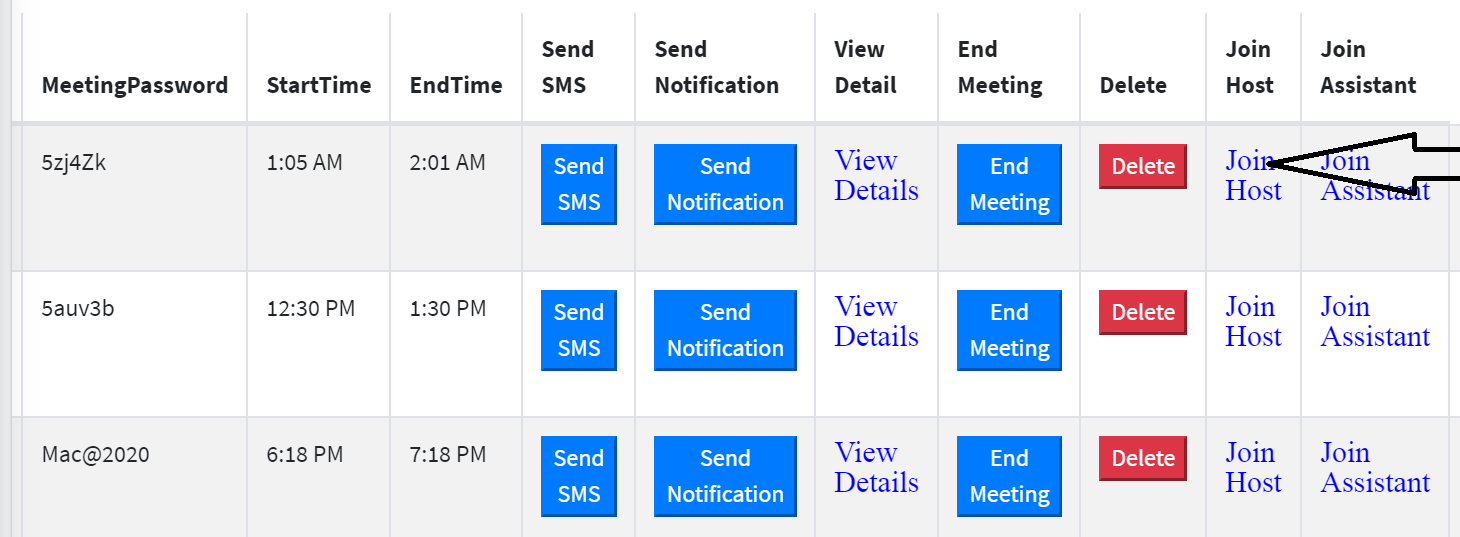
To join as a assistant you have to click on Join as Assistant button from list
To send a SMS to Attendees you have to click on the Send SMS button from the list by doing this below SMS will send to assigned attendees.
Hello nilesh r parmar,your online school period is scheduled on 16-04-2020 and start time is 2:30 pm.
please visit link : https://meeting.macademic.in
UserId : 9924041870
Password : 435755
From MAC SCHOOL Thank you
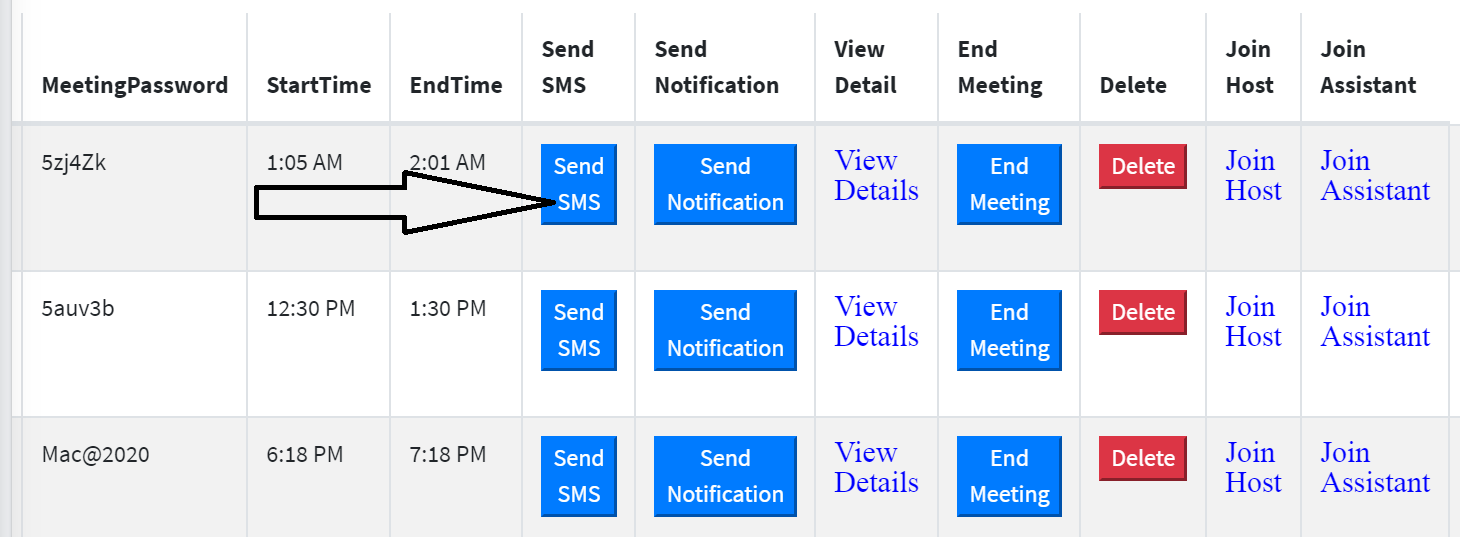
To send App Notifications you have to click on this button by doing this App Notifications will be sent to assigned attendees with Meeting details and login credentials.